Synchronizing with JIRA
In Deep Planner, it is possible to import or export epics from JIRA or establish an automatic synchronization. This article explains these features in detail.
Import Epics From JIRA
It is possible to import work with type “Epic“ from JIRA. In order to do this, go to Epics ➝Import/Export, then select the “Import“ radiobutton and the “Atlassian“ connection. Choose the cloud and JQL query to import. (For more information about JQL, refer to the JIRA documentation on this topic.) Click the “Query“ button. This will display the list of JIRA epics available for import.
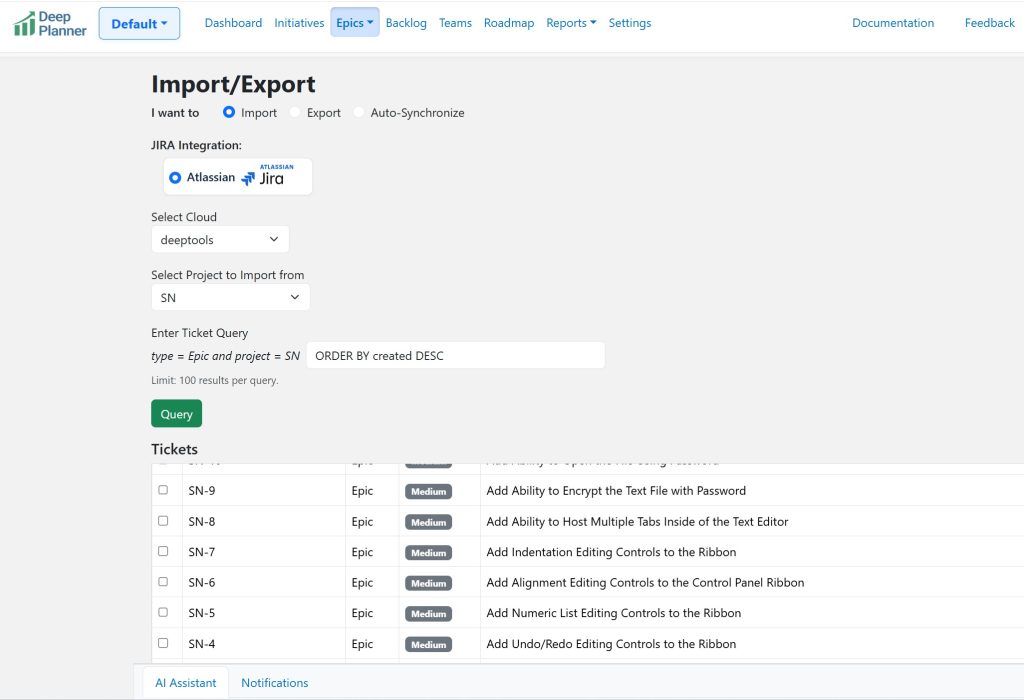
Choose the epics that you want to import and click “Import Selected Tickets.“ This will trigger the following behavior:
- Epics that already exist in Deep Planner will be updated with the most recent information from JIRA.
- Epics that do not exist in Deep Planner will be created with all information taken from JIRA.
When importing epics, the system will consume the following epic data from JIRA:
- Name
- Description
- Status
- Dependencies
- Dependencies are imported based on Links with types “is blocked by“ and “blocks.“
- High-Level Estimate
- The high-level estimate will only be imported if it is a newly imported epic or never modified on the Deep Planner side after the initial import.
- If space is configured to use man-days, the estimate must be specified in the Original Estimate field in JIRA.
- If space is configured to use story points, the estimate must be specified in the Story point estimate field in JIRA, with a custom name or the built-in field name, “Story point estimate.“
- The timeline must be enabled and be displayed in JIRA epics for successful estimates import.
Export Epics To JIRA
It is possible to export Deep Planner epics to JIRA. In order to do this, go to Epics➝Import/Export, then select the “Export“ radiobutton and the “Atlassian“ connection. Choose the cloud and project to export to. After selection, the system will show the list of Deep Planner epics available for export and their export parameters. Choose the required epics and their export parameters, then click “Export Selected Epics“ to trigger the export.
- Epics that already exist in JIRA and were previously imported to Deep Planner to the current space will be updated with the most recent information from Deep Planner
- Epics that do not exist in JIRA or have no association with the current space will be created with all information taken from JIRA
When exporting epics, the system will update the following fields in JIRA:
- Description:
- For description text, the system will take data from the Description field in the Deep Planner epic and copy it to JIRA.
- In addition to the description itself, the system will also generate a section, “Generated by Deep Planner,“ and will add it to the JIRA epic description. The section will contain useful metadata. Depending on the selection in the export parameters, the system may export high-level estimates and user stories and link them to corresponding Deep Planner epic.
- Status: if “Include Status” export parameter is enabled
- Labels: The system will only modify labels that were explicitly defined in Deep Planner and assigned to teams. If “Include Teams as Labels“ is enabled, it will remove the team labels that were unassigned to a particular epic and add the team labels that were assigned in a roadmap schedule.
- Start date: If “Include Start Date“ is enabled, the system will update it with “Start date“ value from epic schedule,
- Due date: If “Include End Date“ is enabled, the system will update it with “End date“ value from epic schedule
- Dependencies: for dependent epics the system will create “is blocked by“ links
- Original Estimate or Story point estimate
- The estimate will only be exported if it is enabled in the export parameter, “Update Original Estimate field.”
- If space is configured to use man-days, the estimate will be specified in the Original Estimate field in JIRA.
- If space is configured to use story points, the estimate will be specified in the Story point estimate field in JIRA with a custom name or the built-in field name, “Story point estimate.“
- The timeline must be enabled and displayed in JIRA epics for a successful estimate export.
- If the export parameter is enabled and the fields are not properly configured in JIRA, the export may fail with an error.
Automatic Synchronization
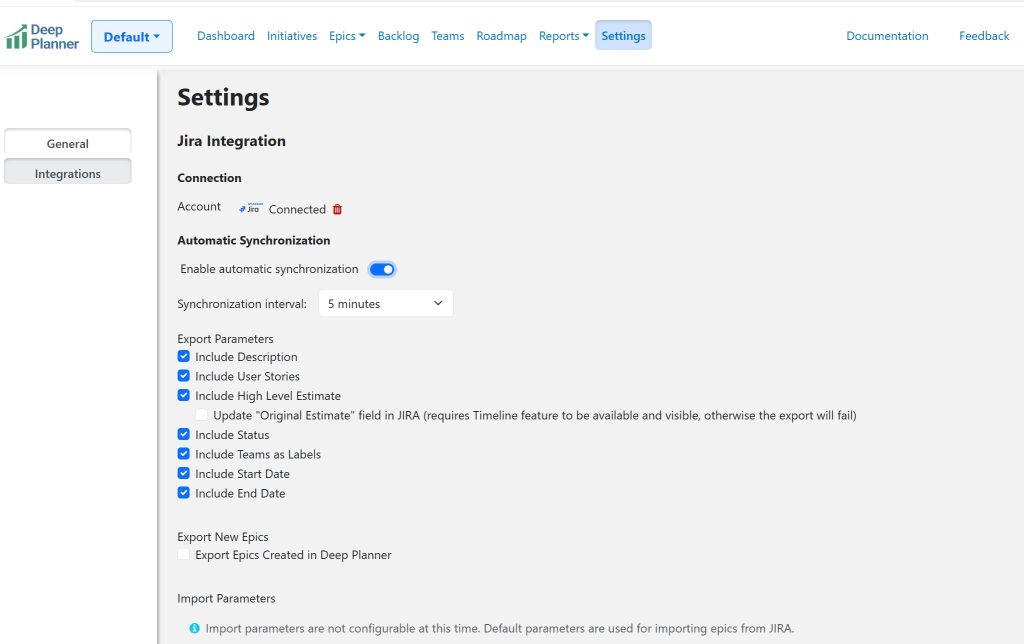
It is possible to configure an automatic synchronization to import and export data from/to JIRA automatically on regular intervals. To setup, go to “Settings,” click “Edit,“ and then refer to the “Integrations“ tab. Select “Enable automatic synchronization.“ Select the synchronization interval and export parameters. Click “Save.“
Data Precedence Notice
If both JIRA and Deep Planner tickets were updated during the synchronization, the system will select the Deep Planner changes as a priority.
Synchronization interval
This parameter is used to define how frequently the system synchronizes the JIRA and Deep Planner epics. The system will pull only tickets that were created or modified after the latest synchronization time. If changes were made in JIRA, the system will update Deep Planner tickets with the latest changes from JIRA. (Read the “Import Epics from JIRA“ section for the list of fields that will be updated.) If changes were made in Deep Planner, the system will update JIRA tickets with the latest changes from Deep Planner. (Read the “Export Epics to JIRA“ section for the list of fields that will be updated)
Export Parameters
Export parameters are used in case the system needs to export Deep Planner changes to JIRA. See the “Export Epics To JIRA“ section for more information about parameters.
Export New Epics
It is possible to configure the system to create new epics in JIRA whenever a new epic is created in Deep Planner. To enable that, check “Export Epics Created in Deep Planner“ and select the cloud and project into which the new epics will be exported
Import New Epics
Deep Planner right now does not import new epics from JIRA automatically. To initiate an import, manually refer to the “Import Epics From JIRA“ section.
Synchronization Logs
Synchronization logs can help troubleshoot potential synchronization issues or impacts. To observe the logs, click “Browse Synchronization Logs,” then select the start and end times to pull logs.
0 Comments